Skip to content

Features

Every step from first request to paid, in one place.

Follow one job through Stacwork, from the first request to the final payment. Then see the tools that run the business around it.

Free plan available. Try Team free for 7 days. No credit card.

Every plan runs the whole loop, from request to paid, in all five ways of working. Team and up needs Team or Unlimited.

Step 1 ยท Capture

Every request lands in one place.

Clients reach you through the form on your website or your online booking page. Every request lands in one list, ready to price or schedule, and a phone call becomes a quote or a job in a couple of clicks.

Sample: Sam Chen's request from a website form, a booking page with open times and a $50 deposit, and the Requests list with 2 new requests.
  • Take requests from your website. Add the request form to your site or share its link, in your own wording. A spam check keeps junk out.

  • Let clients book open times. Online booking shows real openings, lets clients pick a provider, and can take a deposit to hold the time.

  • Turn a request into a quote or a job. One step, no retyping. When it becomes a quote, Stacwork can fill in the lines from what the client wrote.

See all 16 capabilities in Capture

Step 2 ยท Price

Send a price that is easy to say yes to.

Build a quick quote from your catalog, or a proposal with options. Your client opens it from a link, picks what they want, signs, and pays the deposit, with no account to create.

Sample quote 106 for Sam Chen: Stacwork's $1,850 draft, then what Sam sees, with the standard tank chosen over two higher priced options, an expansion tank not added, a $500 deposit due, and Sam's signature.Dashed with an Auto tag: Stacwork drafted it and it waits for you. Solid: a person approved it.
  • Quotes in minutes. Pick items from your catalog and let tax, discounts, and totals add up. Or describe the job and Stacwork drafts the lines for you to check. Free includes 25 automated drafts a month.

  • Options that sell the upgrade. Add optional extras the client can tick, or switch on proposal mode for your own sections and pick-one pricing tiers.

  • Accepted, signed, and paid in one visit. Clients accept, decline, or ask for changes from the link, sign on screen, and pay the deposit. The quote they accepted is saved exactly as they saw it.

  • Team and up

    Follow-ups you do not have to remember. When a sent quote goes quiet, Stacwork drafts the follow-up for you to approve.

See all 14 capabilities in Price

Step 3 ยท Work

Five ways to serve clients. Every one ends in getting paid.

Jobs on site, booked appointments, client projects, unit rentals, and selling products each get their own screens and words, and every plan includes all five. Run one, or several side by side.

How do you work?

A plumber fixing the pipes under a sink
Sample jobs: a water heater swap for Chen on Tuesday at 10:30, assigned to Dana and in progress with its checklist 4 of 5 done, and a gutter repair for Delgado not yet scheduled.

Jobs on site

Quote it, assign the crew, track time and materials, then invoice from the finished work.

PlumbingHVACCleaningLawn care

What it runs

  • Assign one person or a crew, and drag work onto the calendar.
  • Checklists, photos, notes, and the client's signature, captured on site.
  • Check out on site: billable time and materials carry onto the bill, and the client can add a tip.
  • Put a client on a recurring plan and it makes their visits ahead on the calendar, billed by the plan at its price.
  • Switch on a confirmation when a job is scheduled and a reminder the day before. Team and up

On every plan, Free included. Tagged items need Team or Unlimited.

A hairstylist blow-drying a client's hair in a salon
Sample Tuesday with 3 bookings: a balayage at 9:00 with its deposit paid, an open time at 10:30, a cut and color at 13:00 in Room 2, and a facial at 15:30.

Bookings

Let clients choose an open time, collect a deposit, and keep every provider in sync.

SalonsClinicsStudiosDetailing

What it runs

  • Clients book open times online and pick a provider who does the service, or anyone available.
  • Take a deposit when they book, and it comes off their invoice.
  • Clients cancel or move their own booking from the link in their email, if you allow it.
  • Attach a room or a piece of equipment when you schedule, and it cannot be double booked.
  • Reminders the day before and an hour before. Team and up

On every plan, Free included. Tagged items need Team or Unlimited.

Two people talking through a project at a laptop
Sample website redesign for Fields Agency: Discovery for $2,000 done and billed, Design for $4,500 in progress, Launch for $3,000 pending, and a homepage design deliverable the client approved.

Client projects

Send the proposal, track milestones and deliverables, and bill at each checkpoint.

AgenciesConsultantsDesigners

What it runs

  • Win the work with a proposal, pricing tiers, and a payment schedule the client signs.
  • Track milestones and deliverables, each with an owner and a due date, on the calendar and the owner's phone.
  • Invoice each milestone when it is done. The final invoice bills whatever is left.
  • Clients follow the project in the portal, open shared files, and approve deliverables. Team and up

On every plan, Free included. Tagged items need Team or Unlimited.
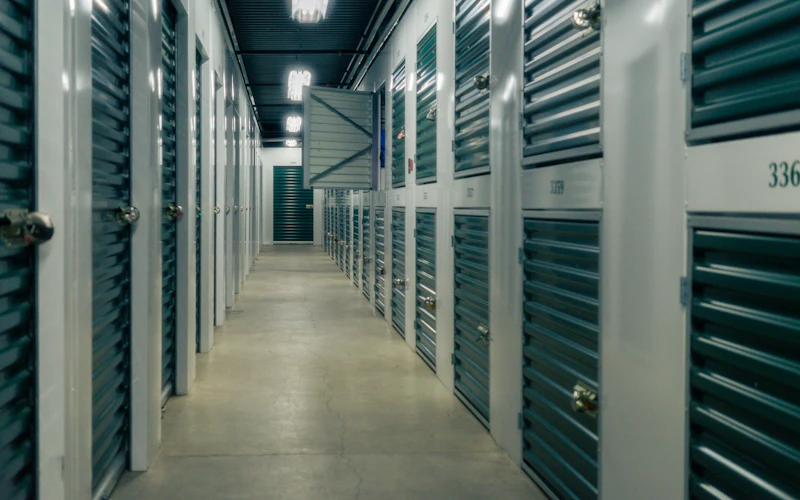
A hallway of green storage unit doors with padlocks
Sample Units board: 18 of 24 occupied, Unit 9 reserved from Oct 15, Unit 21 moving out, and Unit 8 owes $190 in rent.

Unit rentals

Rent out a unit and its rent invoices go out on schedule. See who is moving in, moving out, or behind on rent.

Self storageParkingLockersRV and boat

What it runs

  • Every unit, its tenant, and who is behind on rent, on one board.
  • Rent a unit in one step. Rent invoices follow from the move-in date, weekly to yearly, and wait for your review unless you set them to send.
  • Take a deposit with the rent: prepaid rent off the next invoice, or a refundable security deposit you settle at move-out.
  • Move-ins and move-outs happen on their dates.
  • Tenants give notice from the portal. Team and up

On every plan, Free included. Tagged items need Team or Unlimited.

A customer paying by card at a cafe counter
Sample Register sale S-1042: two lavender soaps and a jar of honey, paid by card, and an online order S-1043 for Rivera ready for pickup.

Selling products

Ring up items at a counter or a market stall, take a card on the reader or the customer's phone, and watch stock come off as you sell.

Salon retailFarmers marketsPop-up shopsAdd-on products

What it runs

  • Tap items from your catalog, scan a barcode, or key in a custom amount, with discounts and the customer on the sale.
  • Check out with cash and change due, a card on the reader, or the customer's own phone by QR code. Split a payment between cash and card, and add a tip at check out.
  • Put a menu online for pickup. Orders are paid when placed and land on the Register for you to mark ready.
  • A Cashier role that sees only the Register and their own sales, with a cash drawer counted at close.
  • Run a points or punch card program, and refund all or part of a sale, items back in stock.

On every plan, Free included.

Schedule the week. Run the day from a phone.

Jobs, appointments, and project due dates share one calendar. Your team sees their own day on their phone, and the office sees the whole schedule.

  • Your calendar, your view. See work as a list, by day, week, or month, or one day with a column per person, and drag it to a new time.

  • Nothing waits unseen. Accepted work sits in an unscheduled tray until it has a time.

  • Clashes caught early. The calendar marks work that lands on someone's time off, and you are warned before you give someone work that overlaps work they already have.

Sample phone view of Dana's day, with the finished water heater job open: checklist done, 4 photos, 2 hours logged, the client's signature, and invoice 1187 with $1,350 due, ready to take payment.
  • Works on any phone. Add Stacwork to the home screen on iPhone or Android. No app store needed.

  • Check out on site. The bill comes from the work with the deposit taken off, the client can add a tip, and you charge a card, record cash or a check, or send a pay link.

  • Directions from every job. Each address shows on a map with directions.

See all 46 capabilities in Work

Step 4 ยท Collect

Invoice from the finished work. Get paid from a link.

One click turns an accepted quote or finished work into an invoice, with the deposit already taken off. Your client pays by card or bank from a link, and the money goes to your own Stripe account.

Sample invoice 1187 built from the job: $1,850 of work, the $500 deposit taken off, $1,350 paid by card. Below, a $180 monthly recurring invoice for Greenway Offices waiting for review.
  • One click from finished work to invoice. Finished jobs and appointments wait in Ready to invoice. Quoted lines, materials, and billable time carry over, and a paid deposit comes off the balance.

  • Paid by card or bank from a link. The receipt goes out once the payment clears, and a bank transfer shows as processing until then. Record cash and checks too, and void or refund when you need to.

  • Bill on a schedule. Recurring invoices go out weekly, monthly, quarterly, or yearly, and wait for your review unless you switch them to send on their own.

  • Team and up

    Reminders that stop when they pay. Stacwork drafts a reminder before the due date and after it, and stops once the invoice is paid.

See all 20 capabilities in Collect

Request to paid, on every plan.

Free runs the whole loop for up to 2 people. No credit card.

Around the loop

See where the business stands every morning.

Home shows what needs you today, on every plan. On Team and up, Co-work answers questions from your own records, automations draft the follow-ups, and you decide what goes out.

Sample Home: 5 items need action, 8 jobs today, $6,240 to collect, and $8,900 in the pipeline, with the priority queue, today's schedule, and recent activity.Home on the Team plan. On Free, Home has the same view without drafts to approve, unread messages, or low stock.

Co-work

Team and up

Ask in plain words, like "Who owes me money?" Co-work answers from your own records, shows the rows behind the answer, and keeps the conversation so you can ask a follow-up.

Sample Co-work answer to who owes me money: $6,240 is open across five invoices, with Greenway Offices owing $1,200, 12 days overdue, and Delgado Landscaping owing $400, 4 days overdue.

Automations

Team and up

Quote follow-ups, payment reminders, appointment and job reminders, and review requests are drafted for you. Approve each one, or put routine emails on autopilot.

Sample automation drafts: a reminder for Greenway Offices' overdue invoice, a follow-up on Northside Apartments' quote, and a review request for the Chen job, each sent once approved.

Inbox and portal

Team and up

Email and portal messages land in one inbox, next to the client's work and invoices. Clients see their quotes, invoices, work, and messages in their own portal.

Sample inbox thread with Greenway Offices about invoice 1172: the emailed reminder and the client's reply.

Reports

Catch payments that never settled, emails that did not deliver, and duplicate clients to merge. Client health is on Team and up.

Catalog and stock

Your services, products, prices, and tax in one catalog that fills every quote and invoice. On Team and up, stock counts down as work is done and flags what to reorder.

Team and settings

Start with five roles, from Owner to Viewer, that decide who can see and change what. On Team and up, make your own in the role editor. Your logo and colors go on every quote, invoice, request form, and booking page.

See all 53 capabilities in Run the business

The Desk

Every page is a window.

Open clients, quotes, the schedule, and invoices side by side. The windows know about each other, and the desk behind them is set up the way your team works.

Windows that work together

Snap and tile

Drag a window to an edge for half the screen or a corner for a quarter, or tile everything in one click.

Linked to the client

Pick a client in one window and the others follow: their quotes, open invoices, and messages.

Drag between windows

Drop a quote into a reply to send it, a client onto the calendar to book them, or finished work onto an invoice to bill it.

Notifications on the taskbar

Payments landing, quotes accepted, and new messages collect on the bell. Click one and its record opens in a window.

A desktop that is yours

Desktop widgets

Live tiles behind your windows: cash collected today, today's schedule, and new requests. Put them where you want them.

Pinned and recent

Pin a client or an invoice to the taskbar, and find what you opened last in the menu.

Smart folders

A folder that holds a question, like quotes waiting more than 7 days or today's jobs. It opens with whatever matches right now.

Shared workspaces

Build a Front desk workspace once and share it with the team. A new hire signs in to a desk that is already set up.

Prefer one page at a time? Classic view is one click away, and Stacwork remembers your choice.

Co-work

Say what you are working on. Co-work sets up the desk.

Ask for month-end and Co-work opens the overdue invoices, the drafts to send, the recurring bills, and the aging report, tiled and ready. Ask anything about your business in plain English. It drafts, you approve.

Co-work comes with Team and up.

Plans

Every plan runs the whole loop.

Free covers request to paid in all five ways of working. Team and up adds the tools that keep clients close and the office ahead.

Free

For a solo operator getting started.

$0/month

billed monthly

  • Clients, quotes, work, and invoicing
  • All five work modes, with online booking, rentals, and the Register
  • Catalog, reports, and automated setup
  • 2 team members
  • 25 automated drafts per month
  • 2.5% card fee, 1% bank fee (capped)
  • 0.5% on cards taken in person
Start free
Most popular

Team

For a small team running the day together.

$49/month

billed monthly

  • Everything in Free, plus
  • Customer portal and messaging
  • Automations, inventory, and Co-work
  • Custom roles in the role editor
  • Up to 10 team members, then $10 each
  • 500 automated drafts per month, then metered
  • 1% card fee, 0.5% bank fee (capped)
  • 0.5% on cards taken in person
Try Team free for 7 days

The card and bank fees are Stacwork's platform fee, on top of standard Stripe processing on the payments you take. The Team trial needs no credit card. After 7 days you stay on Free unless you subscribe, and your data stays.

Work out your costs Compare every plan, including Unlimited

The full list

Everything in Stacwork

Every capability, in the order work happens. Open a group to see all of it. Anything tagged Team and up needs Team or Unlimited. Everything else is on every plan, Free included.

Capture

Show all 16Hide
  • Put a request form on your website, or share its link, in your own wording.
  • Every request lands in one Requests list for the office to price or schedule.
  • Turn a request into a quote or a job in one step, address included, without retyping it.
  • When a request becomes a quote, Stacwork can fill in the lines from what the client wrote, for you to check.
  • A spam check keeps junk out of your request and booking forms.
  • Clients book an open time online for the services you mark as bookable. Bookings
  • Clients choose a provider, or anyone available, when more than one can do the service. Bookings
  • Online booking offers only times inside each provider's hours, outside their time off, with the gap you set after each booking. Bookings
  • A time booked online is held, so the same provider cannot be booked twice. Bookings
  • Take a deposit when a client books, to hold the time. Bookings
  • Clients get a confirmation email with the service, the time, the provider, and a calendar file, whether they book online or you book them in. Bookings
  • Clients cancel or move their own booking from a link in the email. Moving it online closes at the cutoff you set, and you can switch online changes off. Bookings
  • Each client has one record: contacts, service and billing addresses, notes, and tags.
  • Add to-dos to a client and assign them to someone on your team.
  • Each client's timeline shows every quote, job, invoice, and payment.
  • Client messages show on the timeline too. Team and up

Price

Show all 14Hide
  • Build quotes from your catalog, with tax, discounts, terms, and a note to the client.
  • Describe the job in a sentence and Stacwork drafts the lines from your own price list, for you to check before you save.
  • Add optional extras the client can tick on or off before accepting.
  • Save the quotes you send most as templates.
  • Proposal mode adds your own sections and pick-one pricing tiers.
  • Build each pricing tier from catalog items, so prices stay consistent.
  • Ask for a deposit when the client accepts, paid by card or bank.
  • Add a payment schedule to a proposal. The client signs it with the proposal, and it becomes the project's milestones.
  • Send the quote as a link with a PDF. Clients need no account to open it.
  • Clients accept and sign on screen, decline, or ask for changes from the link.
  • The quote a client accepted is saved exactly as they saw it.
  • Accepted quotes, change requests, and paid deposits show up the moment they happen.
  • When a sent quote goes quiet, Stacwork drafts a follow-up for you to approve. Team and up
  • Quotes left past their expiry date are proposed for closing, for you to confirm. Team and up

Work

Show all 46Hide
  • Five ways to work: jobs on site, booked appointments, client projects, unit rentals, and selling at a counter, all on every plan.
  • Turn on only the ways you work in Settings, and switch another on when the business needs it.
  • See work as a list, by day, week, or month, or one day with a column per person. Click an open time to add work there.
  • Drag work from the unscheduled tray onto the calendar, or move it to a new time.
  • The calendar marks work that lands on someone's time off, and you are warned before you give someone work that overlaps work they already have.
  • Assign one person or a whole crew.
  • Your team gets an email when work is assigned to them, moved, or canceled, and when a client books with them.
  • Move work through its statuses, put a job or project on hold with a reason, mark a no-show, or reopen finished work, with every change kept in its history.
  • Checklists, notes, photos, and the client's signature on each job.
  • Each job's address shows on a map, with directions.
  • Tap On my way and the client gets an email saying you are coming, with your arrival estimate if you add one. Jobs on site
  • Log time on the job at your hourly rate, or a person's own, and billable time carries onto the invoice.
  • Record the materials used, and they carry onto the invoice too, with their tax.
  • By default, the Owner, Admin, and Manager roles can correct lines and materials after a job closes, before it is billed.
  • Your team gets My Day on their phone: their schedule, job details, and profile.
  • Each person on your team sets their own hours, more than one window a day if they need it, and time off for a whole or part day from their phone. Online booking follows.
  • Stacwork runs in the phone's browser. Add it to the home screen on iPhone or Android, no app store needed.
  • Check out on site: the bill comes from the work with the deposit taken off, the client can add a tip, and you charge a card, record cash or a check, or send a pay link. Jobs on site, Bookings
  • Your team can ask the office for an invoice when the work is done.
  • Recurring visits for cleaning, lawn care, and other regular work: a recurring plan makes each visit ahead on the calendar and bills on its own schedule. The plan's price covers each visit; put anything extra on a separate invoice. Jobs on site, Bookings
  • Switch on job confirmations and reminders, and clients get a confirmation when a job is scheduled and a reminder the day before, drafted for you or sent on autopilot. A recurring plan's visits get the reminder only. Jobs on siteTeam and up
  • Attach a room or a piece of equipment to an appointment when you schedule it, and it cannot be double booked. Bookings
  • When you move or cancel an appointment, the client gets an email. Bookings
  • Appointment reminders go out the day before and an hour before, sent on their own or drafted for you to approve, as you choose. BookingsTeam and up
  • Track each project's milestones, each with an owner, a due date, a fee, and a status. Client projects
  • Track deliverables alongside the milestones. Client projects
  • Whoever owns a milestone or deliverable sees it on their phone and moves it along. Client projects
  • Milestone and deliverable due dates show on the calendar next to your jobs and appointments. Client projects
  • Keep each project's files and notes on it, from the office or a phone. Client projects
  • In the portal, clients follow a project's milestones, pay a billed one, open the files you share, and approve deliverables or ask for changes. Client projectsTeam and up
  • One Units board shows every unit as vacant, reserved, occupied, or moving out, with its tenant. Unit rentals
  • Overdue rent shows on the unit, so you can see who is behind. Unit rentals
  • Rent a unit in one step: the tenant, the move-in date, and the rent. Unit rentals
  • Take a deposit with the rent: prepaid rent that comes off the next rent invoice, or a refundable security deposit. Unit rentals
  • At move-out you apply the security deposit to what the tenant owes, refund it, or keep part of it with a note. Nothing settles on its own. Unit rentals
  • Move-ins and move-outs happen on their dates, and the board changes on the day. Unit rentals
  • Add units in batches, with a size and a default rate. Unit rentals
  • Tenants give notice to move out from the customer portal. Unit rentalsTeam and up
  • Ring up sales on the Register: tap catalog items, scan a barcode, or key in a custom amount, with line and order discounts. Selling products
  • Check out at the Register with cash and change due, a card on a connected reader, or the customer's own phone by QR code, split between cash and card if they like. The customer can add a tip at check out. Selling products
  • Email the receipt, and find every sale later in the Sales list. Selling products
  • Put a menu online for pickup, on its own page or embedded in your website. Orders are paid by card when placed and land on the Register to mark ready. Selling products
  • A Cashier role sees only the Register and their own sales. Each person opens a cash drawer with a float and closes it with a count. Selling products
  • See sales by employee, with each cash drawer over or short. Selling products
  • Refund all or part of a sale, back to the card or from the cash drawer. Selling products
  • Run your own points or punch card program. Customers earn on paid Register sales and use a reward at checkout. Selling products

Collect

Show all 20Hide
  • Turn an accepted quote or finished work into an invoice in one click, without retyping a line.
  • Finished jobs and appointments wait in a Ready to invoice list until they are billed. A recurring visit is billed by its plan instead.
  • A deposit paid on the quote or at booking comes off the invoice on its own, and is never counted twice.
  • Invoice each project milestone when it is done. The final invoice bills whatever is left. Client projects
  • Draft, finalize, and send invoices, and void one when you need to.
  • Refund a payment in full or in part.
  • Every invoice has a pay link. Clients pay by card or bank transfer, with no account needed.
  • The receipt goes out on its own once a payment clears.
  • A bank transfer shows as processing until the money clears. The invoice says paid only then.
  • Record cash, checks, and other payments made outside Stacwork.
  • A card dispute or a returned bank payment on an invoice, a quote deposit, or a booking deposit updates the balance it paid toward on its own.
  • Recurring invoices for service plans and memberships: weekly, monthly, quarterly, or yearly.
  • Recurring and rent invoices wait for your review, unless you switch that kind to send on its own in Settings.
  • Tenants pay a deposit by card from a pay link, or you record cash or a check. Unit rentals
  • Rent invoices are created from the move-in date on the schedule you choose. Unit rentals
  • Connect your Stripe account in Settings, and the money goes to your own Stripe account.
  • Each client's record shows their quotes, invoices, payments, and what they still owe.
  • Payment reminders are drafted before the due date and after it, and stop once the invoice is paid. Team and up
  • A customer portal where clients see their quotes, invoices, work, and messages, and pay online. Team and up
  • Clients on a recurring plan see the next bill in the portal and, if you allow it, cancel at the end of the period. Team and up

Run the business

Show all 53Hide

Home

  • Home opens on what needs you: overdue invoices, quotes to send or chase, new requests, work to schedule, and work ready to bill.
  • Drafts waiting for your approval sit at the top of Home. Team and up
  • Today's jobs and appointments share one schedule, in time order.
  • See what you are owed, what is won but not yet billed, and 8 weeks of money collected.
  • A feed of new requests and bookings, quote decisions, deposits, payments, and finished work.
  • One New button starts a job, appointment, project, quote, invoice, or client.
  • Press Ctrl K to jump to any client, quote, job, invoice, or catalog item.

Co-work

  • Ask Co-work in plain words about clients, work, requests, quotes, invoices, payments, messages, rentals, recurring plans, and your team's workload. Team and up
  • Answers show the figures and records behind them, as a summary, a table, or a chart. Team and up
  • Ask a follow-up in the same conversation, or reopen an earlier one. Team and up
  • Ask about the quote, invoice, or job you have open. Team and up
  • Ask for revenue by service, invoice aging, or how your quotes are doing. Team and up
  • Client health shows lifetime value, on-time payment, and who is drifting away. Team and up

Automations

  • Review requests are drafted after finished work. Team and up
  • When a client goes quiet, or a top client is due back, Stacwork creates a task to reach out. Team and up
  • Drafts wait for your approval unless you put a routine email automation on autopilot. When you set up Appointments, Stacwork offers autopilot for its reminders. Team and up
  • Edit the wording each automation uses, or ask Co-work to rewrite a draft's tone. Team and up
  • See how many automated drafts you have used this month: 25 on Free, 500 on Team then metered, unlimited on Unlimited.

Inbox and portal

  • One inbox for each client's email and portal messages. Team and up
  • Each conversation shows the client and the related job, quote, or invoice. Team and up
  • Replies to your emails land back in the same client thread. Team and up
  • Write a message yourself, or start from a draft and edit it before it goes. Team and up
  • Unread counts show in the inbox and on Home. Team and up
  • Send a client their portal sign-in link, or switch their access off. Team and up
  • Your logo and business name at the top of the customer portal. Team and up

Reports

  • Reports flag any card or bank payment that started but never settled, with one click to check it.
  • See any client email that did not deliver.
  • Stacwork finds likely duplicate clients so you can merge them without losing their history.

Catalog and stock

  • One catalog for your services and products, with prices, tax, and which ones clients can book online.
  • Catalog items fill quotes, proposal tiers, invoices, and work, so prices match everywhere.
  • Rooms, equipment, and rental units live in the catalog too.
  • Track stock with reorder levels and supplier details. Team and up
  • Parts on accepted quotes and open work are set aside, so you see what is really free. Team and up
  • Stock comes down when an invoice is finalized or work lines are completed. Team and up
  • Adjust stock by hand and see every movement. Team and up
  • When an item hits its reorder level, Stacwork creates a restock task. Team and up
  • Low stock shows on Home. Team and up

Team and settings

  • Five roles to start: Owner, Admin, Manager, Team member, and Viewer.
  • By default, a Team member sees only the work assigned to them, and the client, invoices, and payments of that work.
  • Make your own roles in the role editor: copy a role, name it, pick its home screen, and choose what it can see and change, area by area or permission by permission. Team and up
  • Rename and adjust the default roles too, all but Owner, and move roles up or down the ladder. Team and up
  • Apart from owners, people can change or remove only those whose role ranks below their own, and nobody can give access they do not have.
  • An owner can add, demote, or remove other owners, and there is always at least one owner.
  • Permissions are checked on our servers, not just hidden on screen.
  • Team, invitation, role, and permission changes are recorded, with who or what made each one, when, and what changed.
  • 2 people on Free, up to 10 on Team then $10 each, and unlimited on Unlimited.
  • Every new account gets Team free for 7 days, no card. If you do not subscribe, you move to Free and keep your data.
  • If you are over the Free seat limit after the trial, everyone except owners is locked out after 72 hours until you are back within it. Owners can still sign in to fix it, and nothing is deleted.
  • Set your time zone, business hours, work days, and the ways you work, once.
  • Your logo and colors on quotes, invoices, and request and booking pages.
  • Choose quote and invoice numbering, how long quotes stay valid, payment terms, and default wording.
  • Describe your business and Stacwork suggests a starter price list and payment terms for you to review.
  • Manage your Stacwork plan and billing history in Settings.

The Desk

Show all 12Hide
  • Open any office page as a window: drag it, resize it, and keep several side by side.
  • Drag a window to an edge for half the screen or a corner for a quarter, or tile everything in one click.
  • Pick a client in one window and the others follow: their quotes, open invoices, and messages.
  • Drop a quote into a reply to send it, or a client onto a list to start a draft for them.
  • Payments, accepted quotes, and new messages collect on the taskbar's bell, and each opens its record in a window.
  • Live tiles on the desktop for money collected, money to collect, today's work, and the pipeline.
  • Pin records to the taskbar, and find what you opened last in the menu.
  • Smart folders hold a question, like overdue invoices or quotes waiting on clients, with a live count.
  • Save a set of windows as a workspace and open it again in one click.
  • Share a workspace with your team, so everyone starts the day with the same windows.
  • Tell Co-work what you are working on and it opens the windows for it, tiled, for you to keep or undo. Team and up
  • Prefer one page at a time? Switch to the classic view whenever you like, and Stacwork remembers your choice.